
How to log hours on a ticket, project or from the scheduler, how approval works, and how to generate a billing-ready report in a few clicks.
The question seems simple: how many hours did my team spend on client X this month? But if time tracking lives in an Excel file that each employee fills in when they get around to it — usually Friday afternoon, from memory — the answer you get is approximately correct. In hourly billing, “approximately” isn’t enough.
UnitLook handles time tracking differently: entries happen in the moment of work, tied to specific context, and the report is always ready.
Three Ways to Log Hours
The core idea is that you log work time where you’re already working — not in a separate module you need to open independently.
1. On a ticket — the most common way
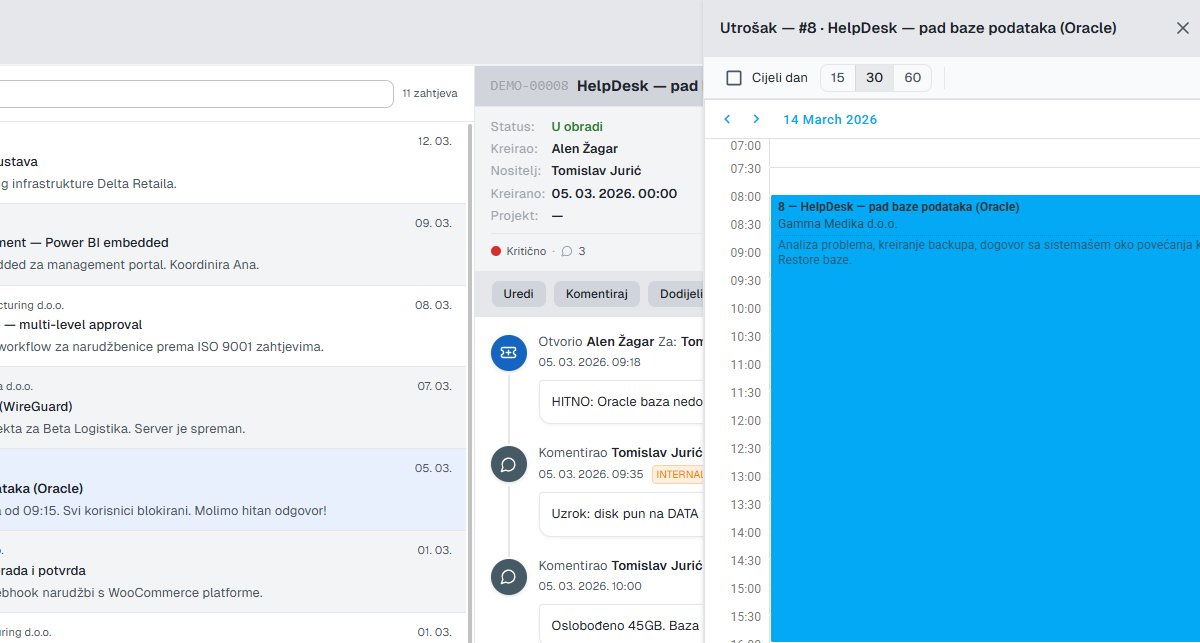
Open the ticket you’re working on. In the lower section of the ticket there’s a Time Tracking section with an “Add entry” button. You click, enter the number of hours and a brief description of the activity, confirm. The entry is recorded and tied to that ticket, project and client — no manual pairing needed.
This is the fastest way: you resolve the ticket, immediately log hours, close it. The complete cycle.
2. On a project or task
If you’re working on a task that isn’t a ticket (e.g. internal development, administrative work), the entry goes on the project or task in the Projects module. Same principle — date, hours, description — just in a different context.
3. From the Planning module
If you’ve planned your week in advance in the Planning module, the system offers a “Log” option directly on the planned block. You enter what was actually done instead of what was planned — and immediately have the comparison.
Reports
When time tracking is properly filled in, the system generates reports — not you manually.
You filter by period (week, month, custom), client, project or employee — and within seconds you get a table with:
- Total hours by project/client
- Breakdown by employee
- Activity descriptions (for detailed insight into what was done)
CSV export comes with one click. You open that CSV directly in Excel or send it to accounting for invoicing — no processing required.
Planned vs. Actual Comparison
If you use the Planning module together with Time Tracking, you get one of the most useful analyses: did we deliver as much as we planned?
For fixed-price projects this is an early signal if the project is consuming more hours than estimated. For time & material projects you have a ready basis for billing.
Practical tip: We recommend employees enter time tracking every day at the end of the working day — not weekly from memory. 2–3 minutes every day is more accurate than an hour of reconstruction on Friday.
Conclusion
Good time tracking isn’t a bureaucratic obligation — it’s data that tells you the truth about how the team spends its capacity. UnitLook makes that tracking as unobtrusive as possible for the employee, while giving managers and accounting accurate data without manual collection.
From the first entry to a finished report — five minutes at most.
Author
Igor
UnitLook team — we build the tool that makes everyday work easier for teams.
Interested in UnitLook?
Request a free demo and see how UnitLook can help your team — no commitment required.