
The Planning module brings a weekly and monthly scheduler that lets managers assign work in advance and gives employees a clear view of their own week — all integrated with time tracking.
Every team manager at least once a week gets the same question — from a client, from management or from themselves: “Who’s free next week? Can we take on a new project?” And the answer, without a system, requires phone calls, searching through emails or guesswork.
That’s exactly the problem the new Planning module solves.
What Is the Planning Module
Planning is a weekly and monthly scheduler that gives you a view of the team’s upcoming work on one screen. Unlike time tracking — which records what has already been done — Planning tells you what needs to be done and who is assigned to it.
There are two participants:
- The manager assigns tasks to employees for upcoming periods
- The employee sees their own week and can add their own plans (such as internal tasks or planned leave)
How It Works in Practice
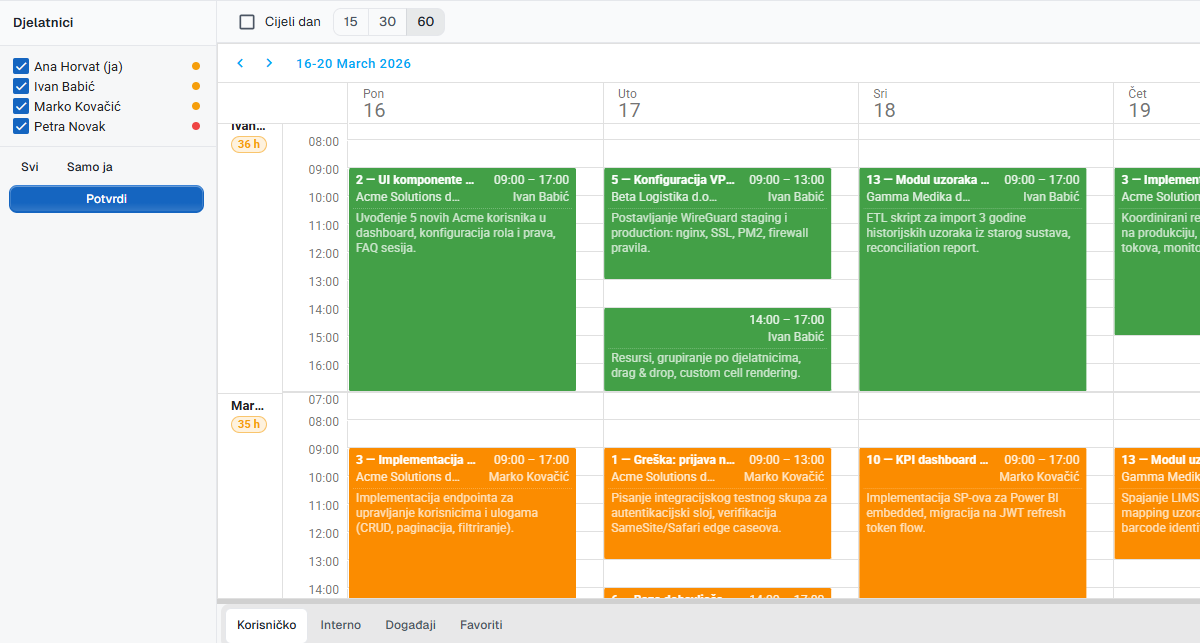
Open the Planning module and select the week you want to plan. On the left is the list of employees; in the centre the schedule for the selected period.
To add an entry you click on the desired day, select the employee (or they’re already in the row), enter the project or task description and number of hours. Done. The entry appears in the schedule as a block for that day.
The employee sees the change instantly in their view — no one needs to send a notification.
Capacity Overload Alert
The most common planning mistake is overloading: the manager schedules 10 hours of work for someone who already has 8 hours planned. The system automatically detects this.
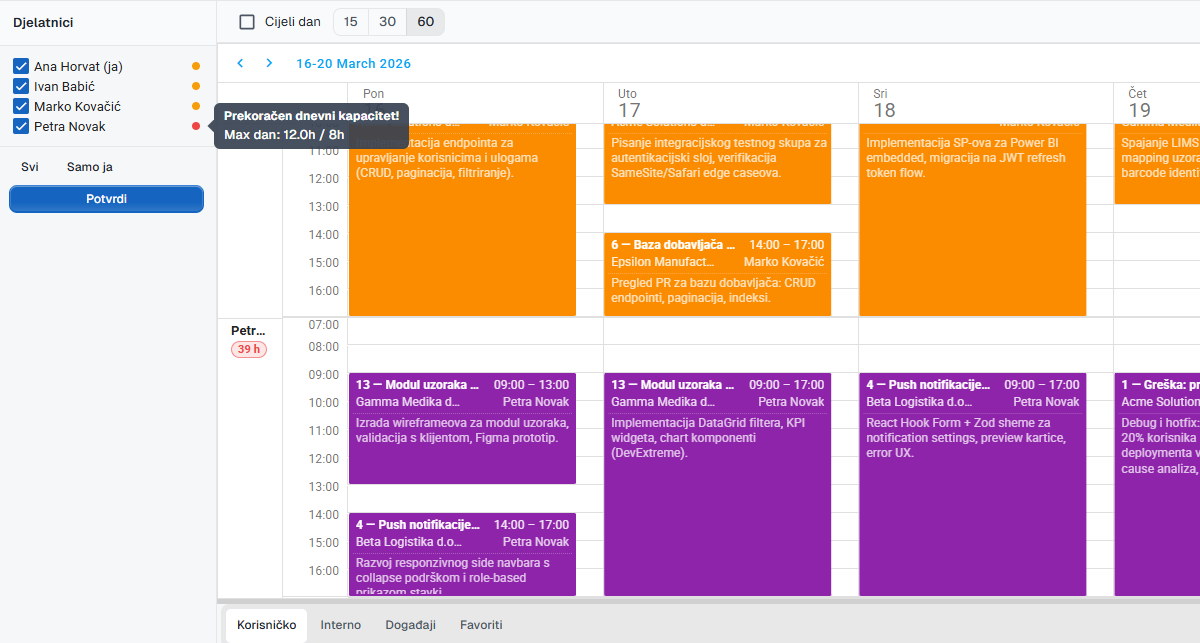
When the total planned hours for a specific employee on a given day exceed the set daily capacity (default 8 hours, adjustable per employee), the system displays a red indicator. The manager sees this immediately — before the problem occurs.
Planning and Time Tracking — A Closed Loop
The Planning module and the Time Tracking module together form a complete work management cycle:
- Planning — manager schedules work for the next week
- Work — employees work and log hours in Time Tracking
- Comparison — one click to see the deviation: planned vs. actual
This comparison is especially useful for project managers who need to report on progress, and for teams working on fixed-price quotes — you immediately see if a project is consuming more hours than estimated.
Connection to Projects and Tickets
Planning entries can be linked to an existing project or ticket. When an employee logs hours on that project or ticket, the system automatically matches them with the planned entry — no manual pairing required.
Who Benefits from This Module
Planning is especially useful for:
- Project teams working on multiple projects in parallel who need to balance capacity
- Service companies that bill by the hour and need to know in advance whether the team is available for a new engagement
- Managers who want to see the team’s workload at a glance without juggling emails and spreadsheets
Availability
The Planning module is available to all UnitLook users from today. You can find it in the sidebar, between Projects and Time Tracking.
For onboarding, we recommend the manager set up a weekly plan for the first week of use — 15 minutes is enough for the team to get a first impression of how the module works.
Author
Igor
UnitLook team — we build the tool that makes everyday work easier for teams.
Interested in UnitLook?
Request a free demo and see how UnitLook can help your team — no commitment required.